
AI OCR for Images and PDFs
Extract text from images & PDFs with AI. Supports 18+ languages including Uyghur.
What is this tool?
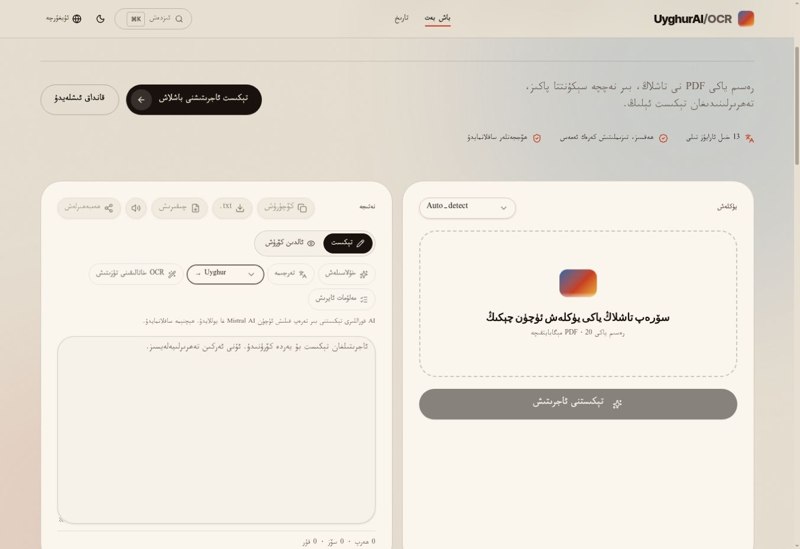
AI OCR extracts text from images and PDF files using AI. It supports more than 18 languages, including Uyghur.
What is it used for?
Most PDFs are really images, so the text inside cannot be searched or copied. Multilingual OCR also works when Uyghur and another language appear in the same document.
How is it used?
Upload an image or PDF, choose the language and copy the extracted text. You can submit a multi-page PDF in one go.
Who is it for?
Offices archiving documents, researchers, students and anyone working with multilingual material.
Getting started
- Drag an image or PDF into the tool, or click to upload one (up to 20 MB).
- Leave the language on automatic detection or choose it yourself.
- Press the button to extract the text.
- Edit, copy, download or share the result; earlier results are on the History page.
Frequently asked questions
- How do I get Uyghur text out of a PDF?
- Upload the PDF to the OCR tool and choose Uyghur as the language. If the PDF already contains real text, you can simply copy it; a scanned, image-only PDF needs OCR.
- How can I make OCR results more accurate?
- Scan at high resolution (around 300 DPI), keep the page straight, light it evenly and avoid shadows. Skewed and blurry images are the biggest cause of errors.
- How many languages does it support?
- It supports more than 18 languages, including Uyghur. That makes it convenient for documents that mix Uyghur with another language.
Also known as
- OCR - تېكىست ئاجرىتىش
- OCR - tékist ajritish
- OCR - текист аҗритиш
- AI OCR
- PDF دىن تېكىست ئاجرىتىش
- ئۇيغۇرچە OCR
- Uyghurche PDF tékist
- Uyghur OCR PDF
- extract text from PDF Uyghur
Terms behind this tool
Related articles
OCR and Text Recognition — The Arabic-Script Challenge
How OCR works, why Uyghur Arabic script is hard to recognise, and how to get cleaner scans
AIObject Detection — Complete Guide
Complete Uyghur guide to object detection fundamentals — bounding boxes, IoU, anchors, NMS, and mAP
AIDetection Models — YOLO26, R-CNN, DETR Compared
YOLO26, YOLO11, Faster R-CNN, RetinaNet and DETR compared with official numbers, plus how to choose.
Related Tools
Yardem
Visual AI agent workflow builder and orchestrator — drag, drop and connect agents to automate tasks.
AI Model
The Uyghur-first UyghurAI model family and its roadmap.
Oghuz AI
AI translation between Uyghur and other Turkic languages.
Idirak Search
AI search that answers questions in Uyghur directly.